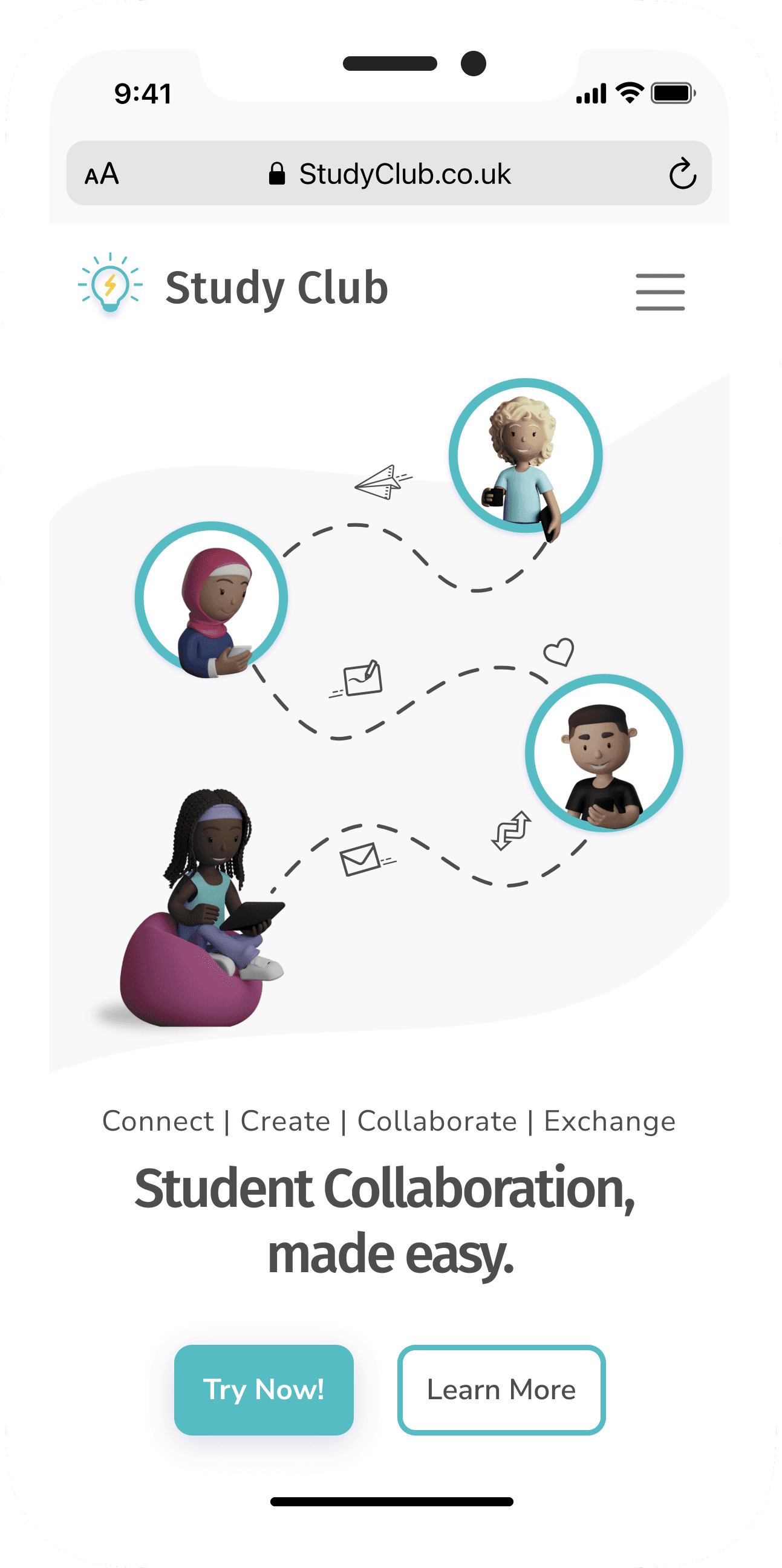
Connect students online to facilitate peer-to-peer learning, support, feedback, and motivation.
Students
Connect
Learning
Support
Feedback
Motivation
Tools
Procreate
Miro
Adobe XD
Framer
My Proposal
Create
Clubs
Collaborate
Whiteboard
Chats
Exchange
Feedback
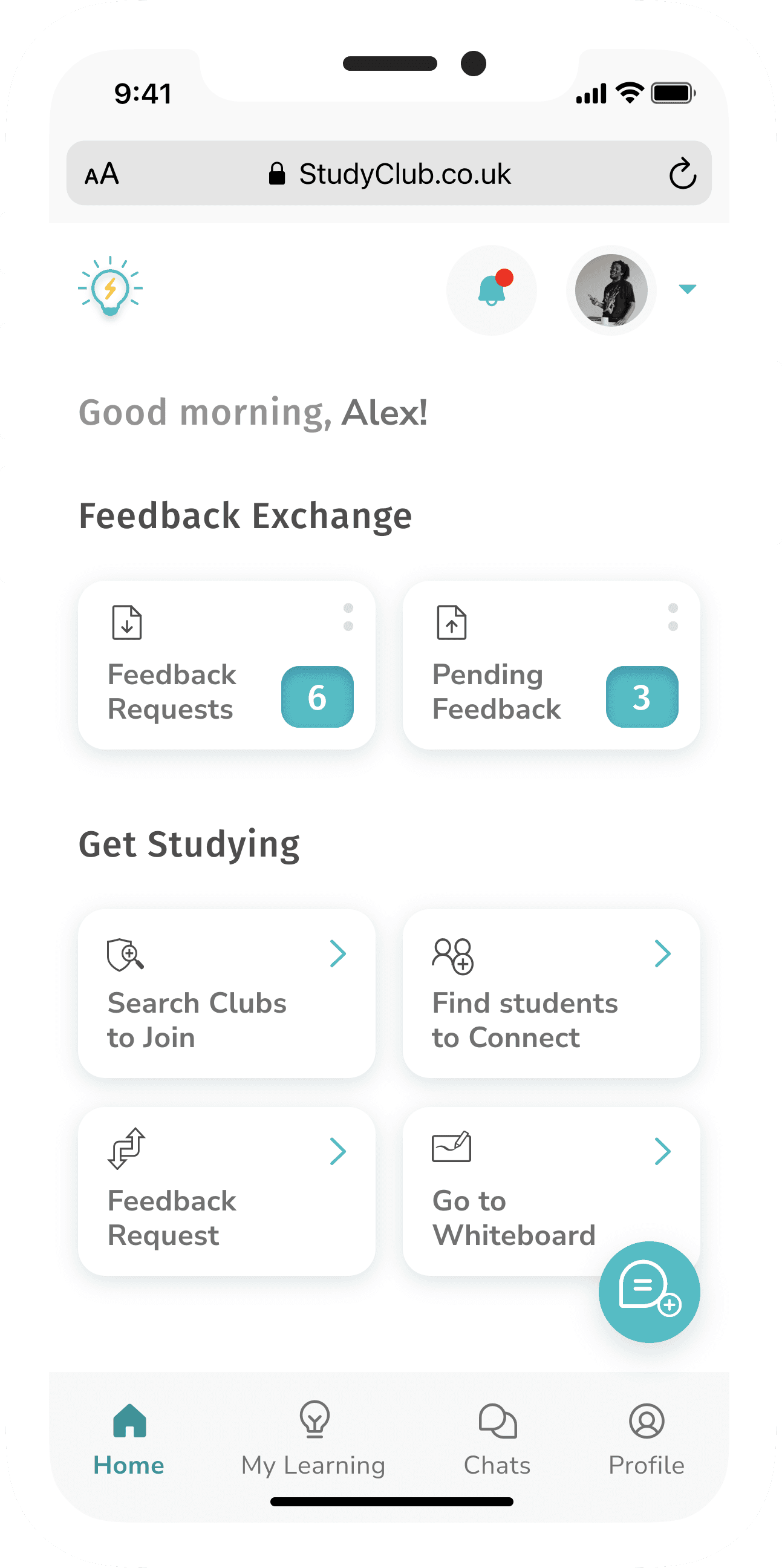
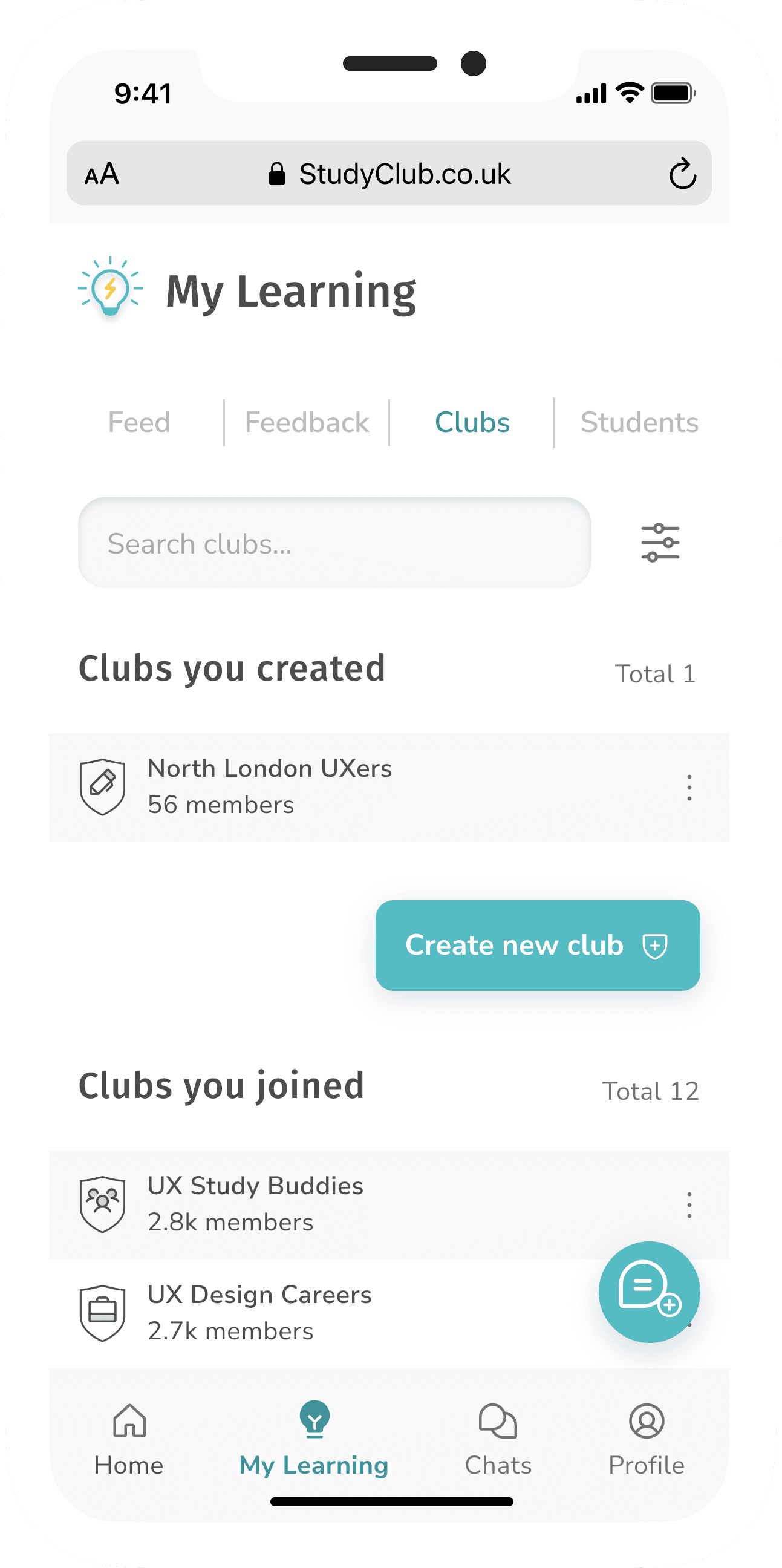
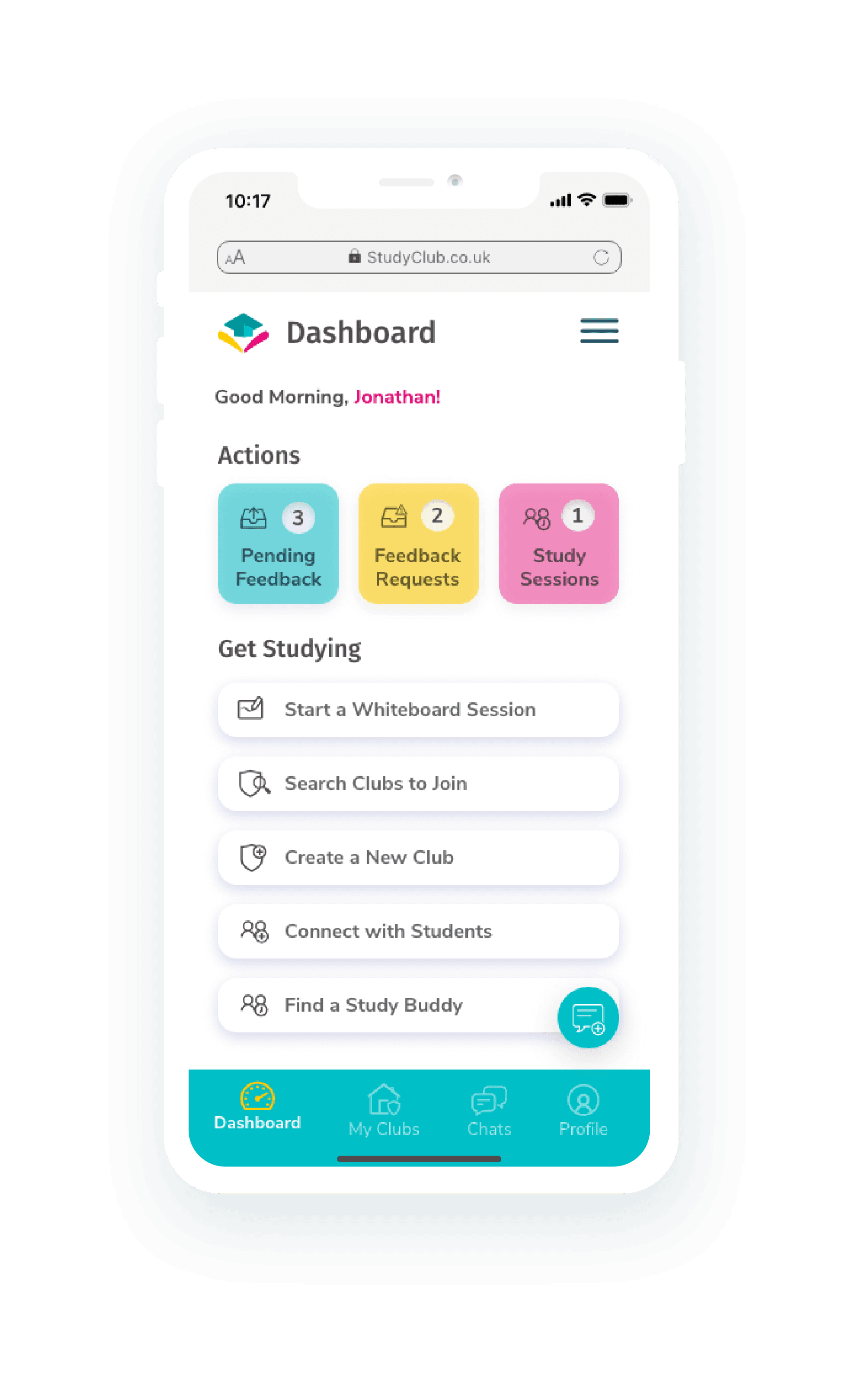
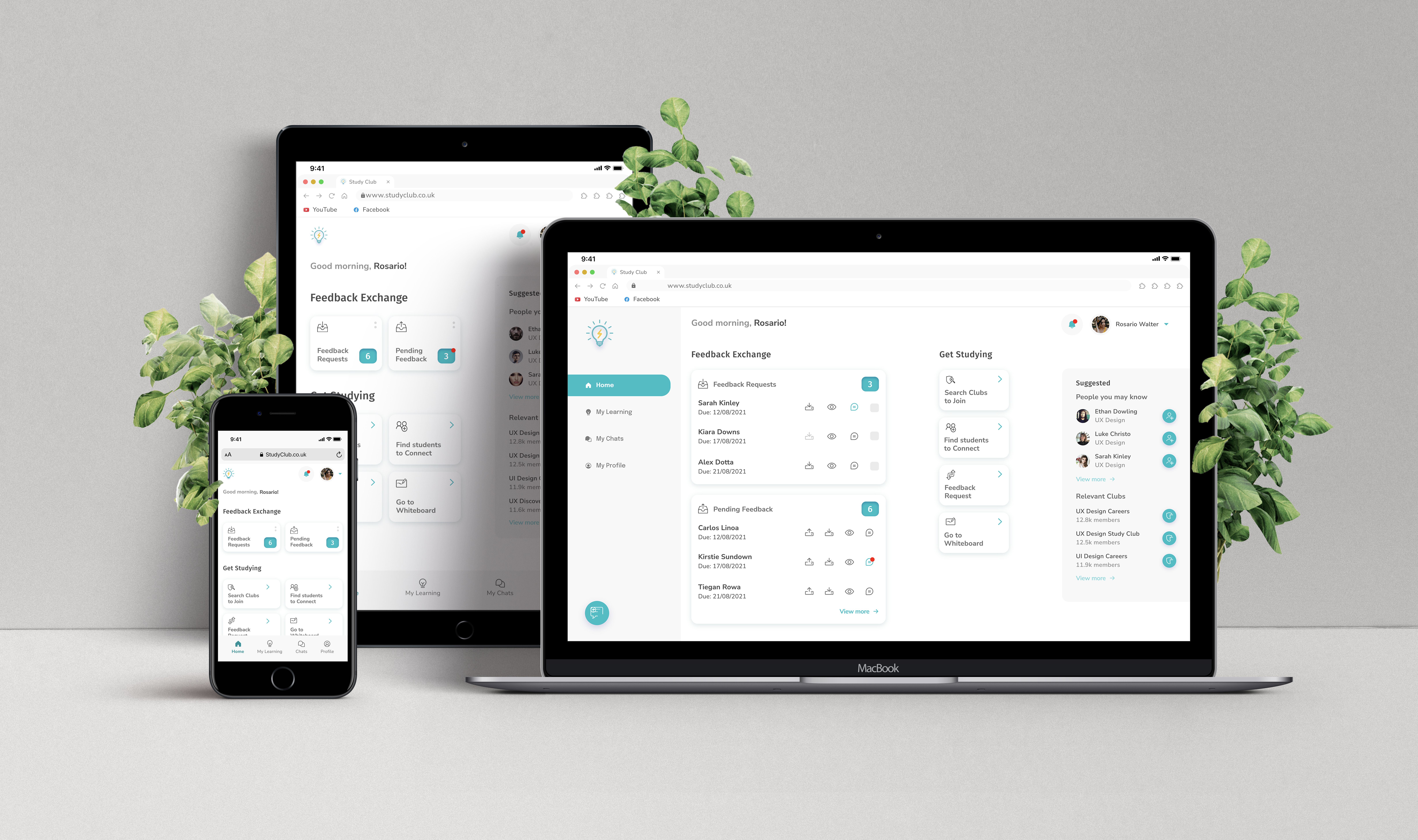
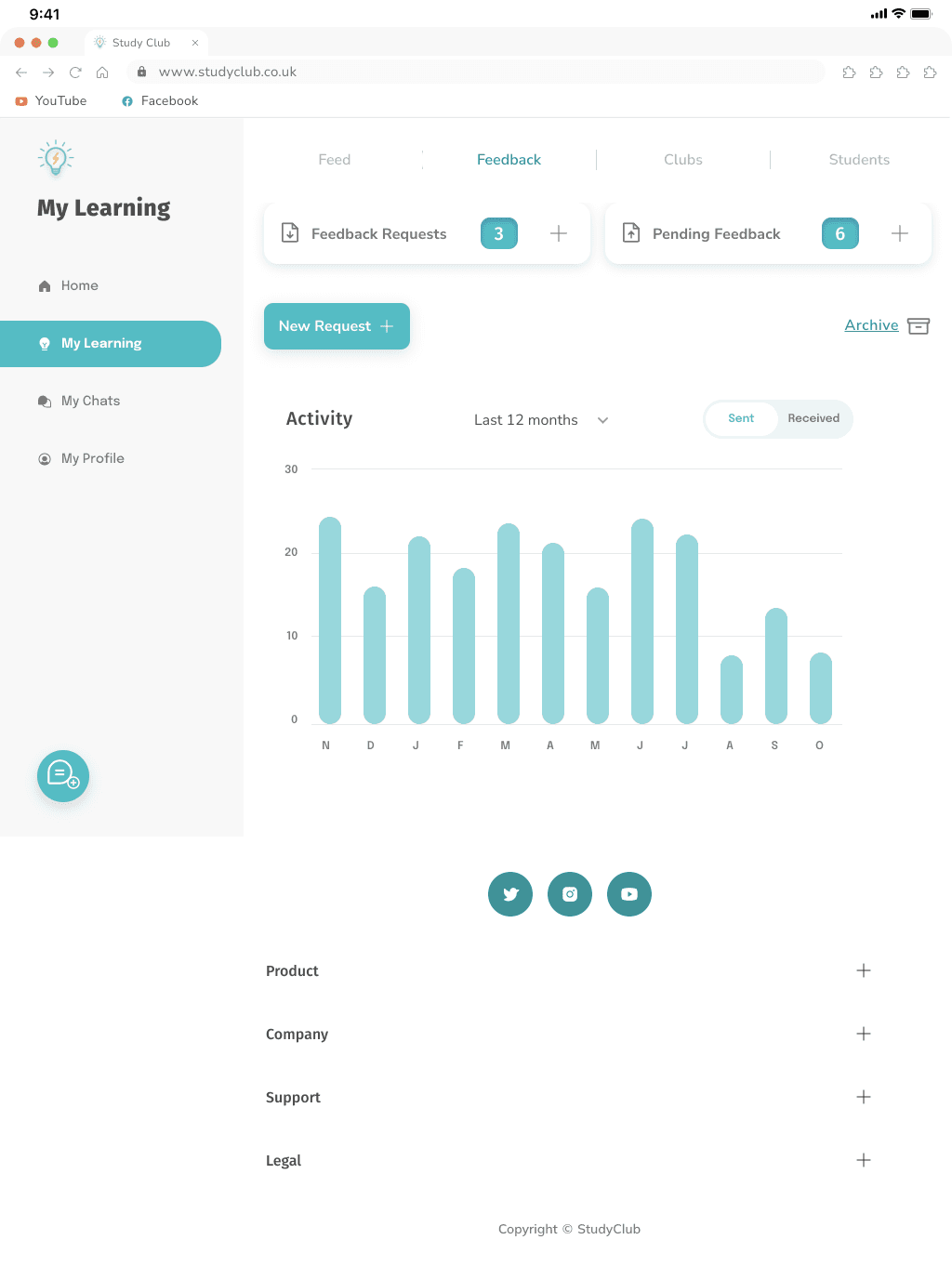
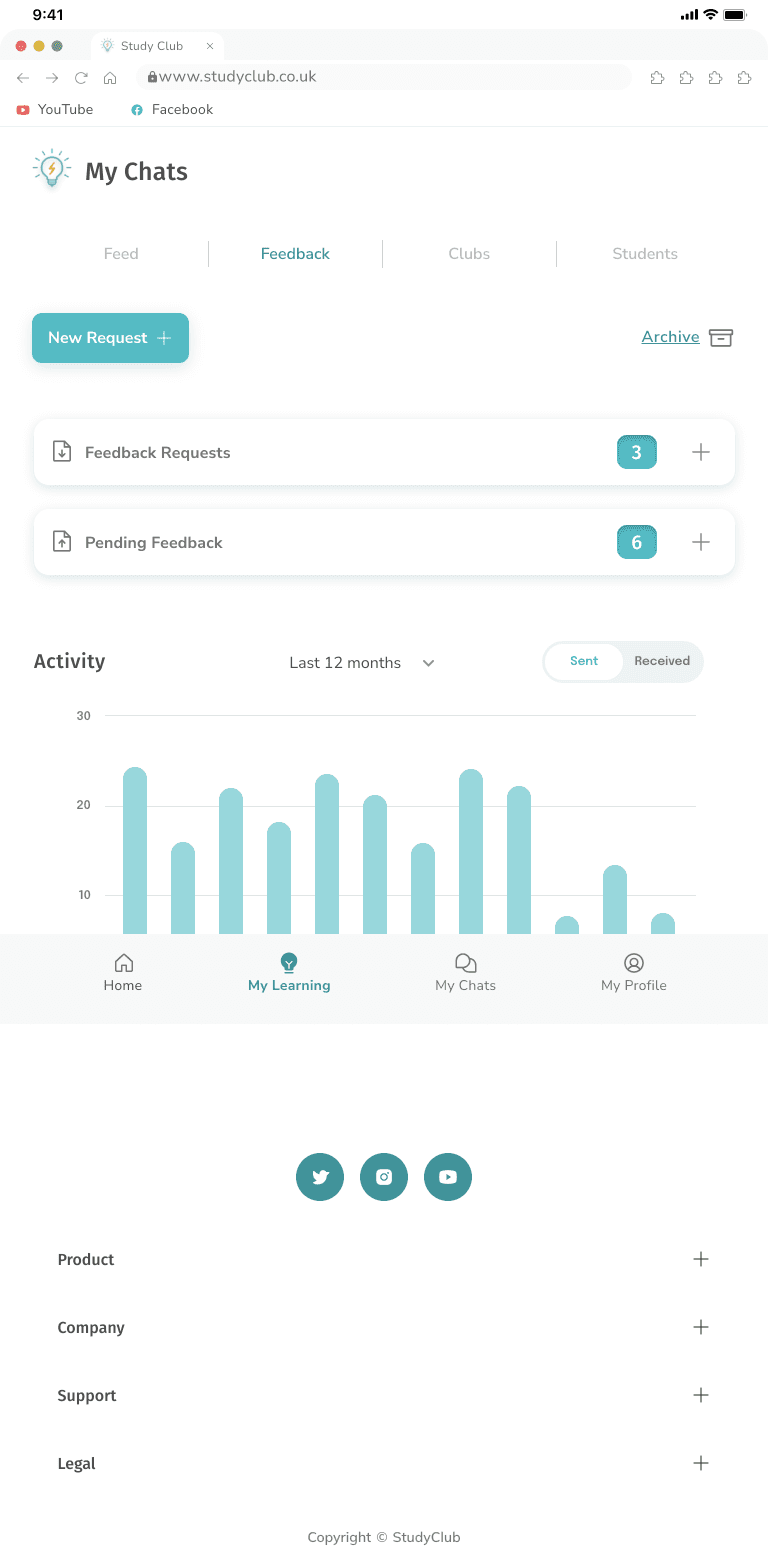
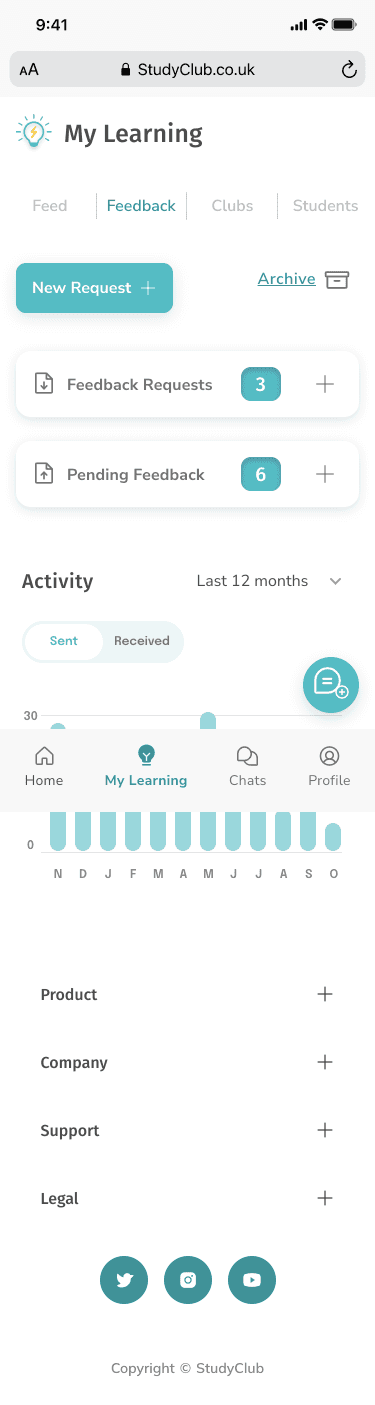
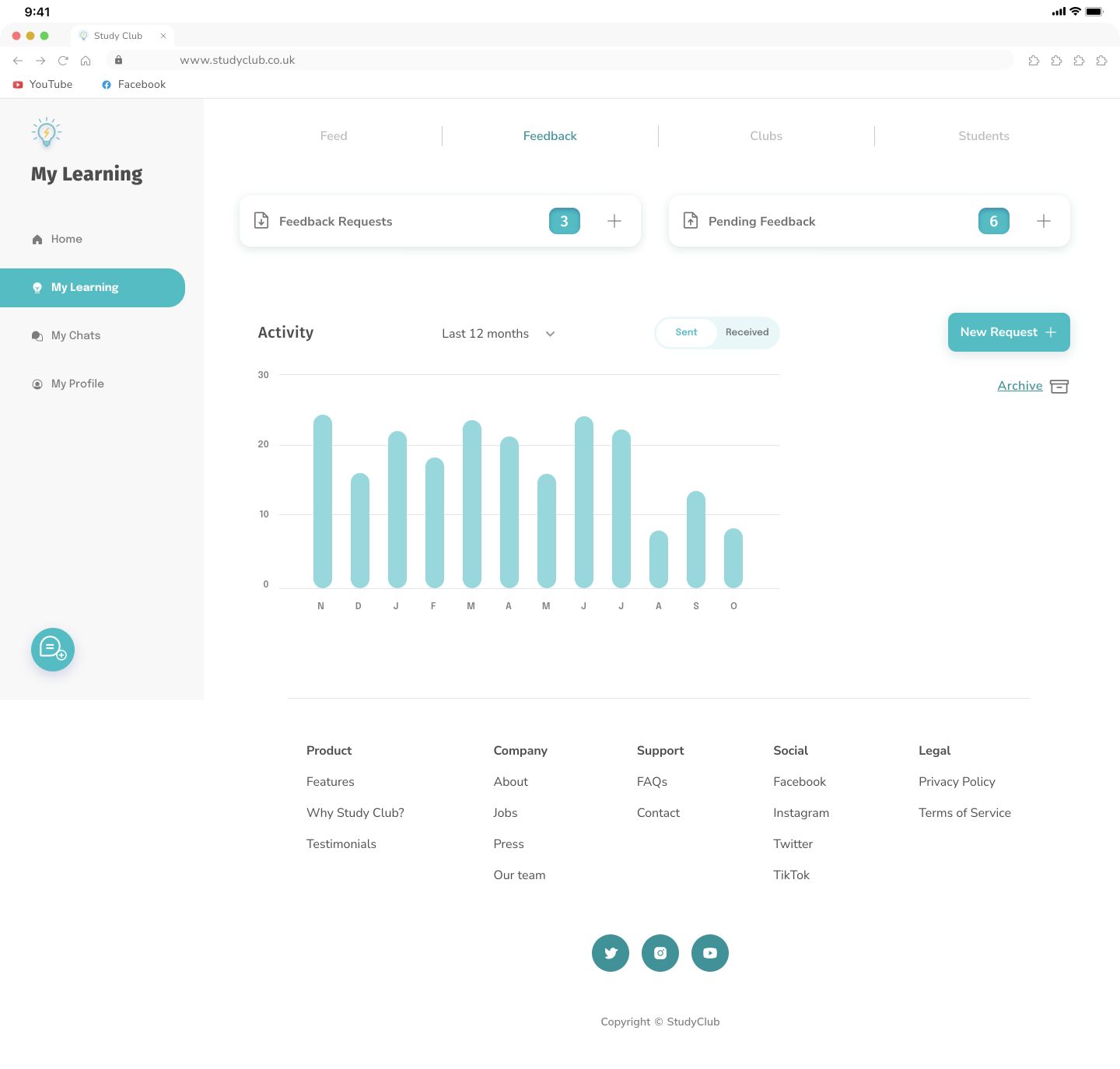
Students connect via a responsive web application, where they can create their own study clubs, exchange feedback on work and collaborate using feed, chat & whiteboard features.
Students connect...
Project Outline
UX Groundwork
1
Finding a Style
2
Visual Design Decisions
3
Introducing Study Club
4
Style Guide
5
Responsive Design
6
Learnings
7
1
UX Groundwork
1.1 User Persona
Meet Alex!
22
London
Lives with partner
Student/ Part-time Retail Store Manager
“I think teamwork will be key to my professional development, so I’d like to find like-minded students to collaborate on projects.”
UX Groundwork
Goals
Juggles studying/working part-time. Wants to complete course as quickly as possible and gain marketable skills.
Find relevant supporting materials, advice from fellow students, and receive peer feedback.
Would like to find like-minded students to collaborate with.
Tasks
Find supporting materials to help master complex subjects in his course.
Connect with like-minded students to share work and collaborate.
A tool to keep motivated and support development as a student and beyond.
Environment
Physical: Lives in a small house with his partner.
Social: On weekends, he likes exercising at the gym and going out with his partner & friends.
Technological: Basic understanding of technology. Uses till and stock management software. Course is text-based, but used online tools previously.
UX Groundwork
1.2 User Stories
View and share resources
As a frequent user, I want to be able to view and share articles, videos, images, and other files, and write posts for other students to read, so that we can share knowledge.
Activity notifications
As a frequent user, I want to know if someone messages me or shares something that I would be interested in reading or reviewing, so that I don’t miss anything.
Create a profile
As a new user, I want to create a profile, so that other students can find me.
Message students
As a frequent user, I want to be able to message other students, so that we can problem-solve together.
Connect with students
As a new user, I want to find and connect with students studying my subject (or a related subject), so that we may collaborate.
Exchange feedback
As a frequent user, I want to get peer feedback on my assignments, so that I can improve my classwork before submitting it to the instructor.
UX Groundwork
1.3 Wireframes
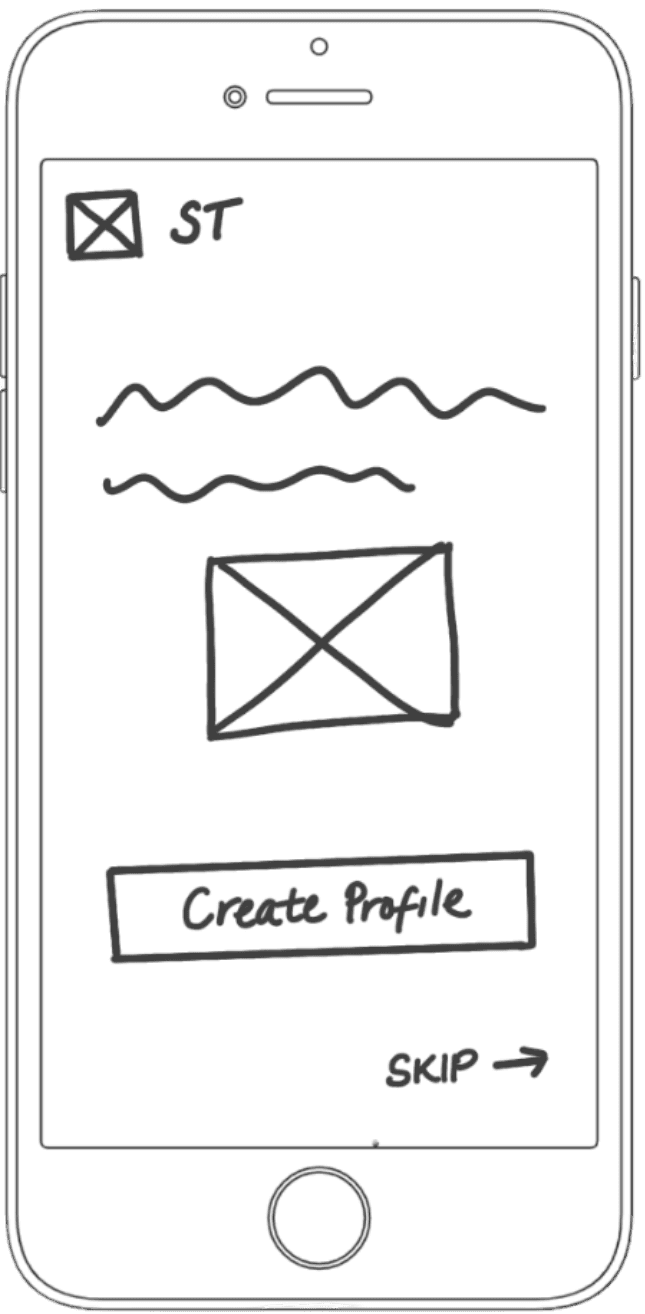
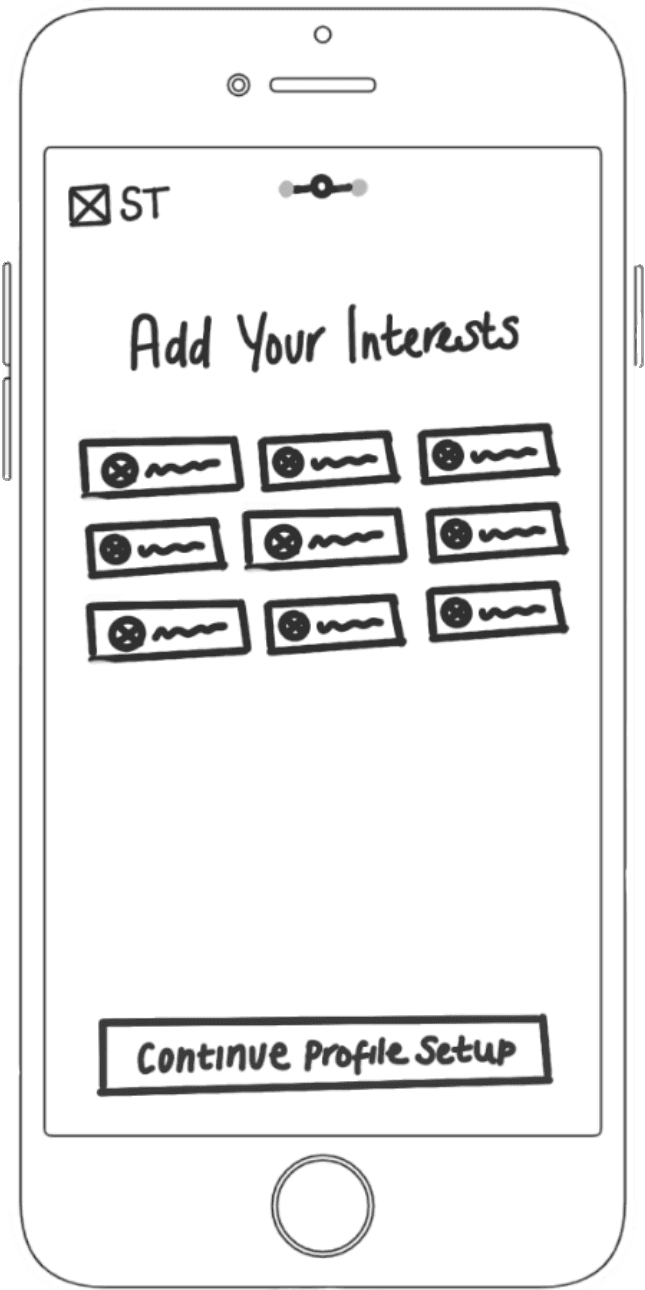
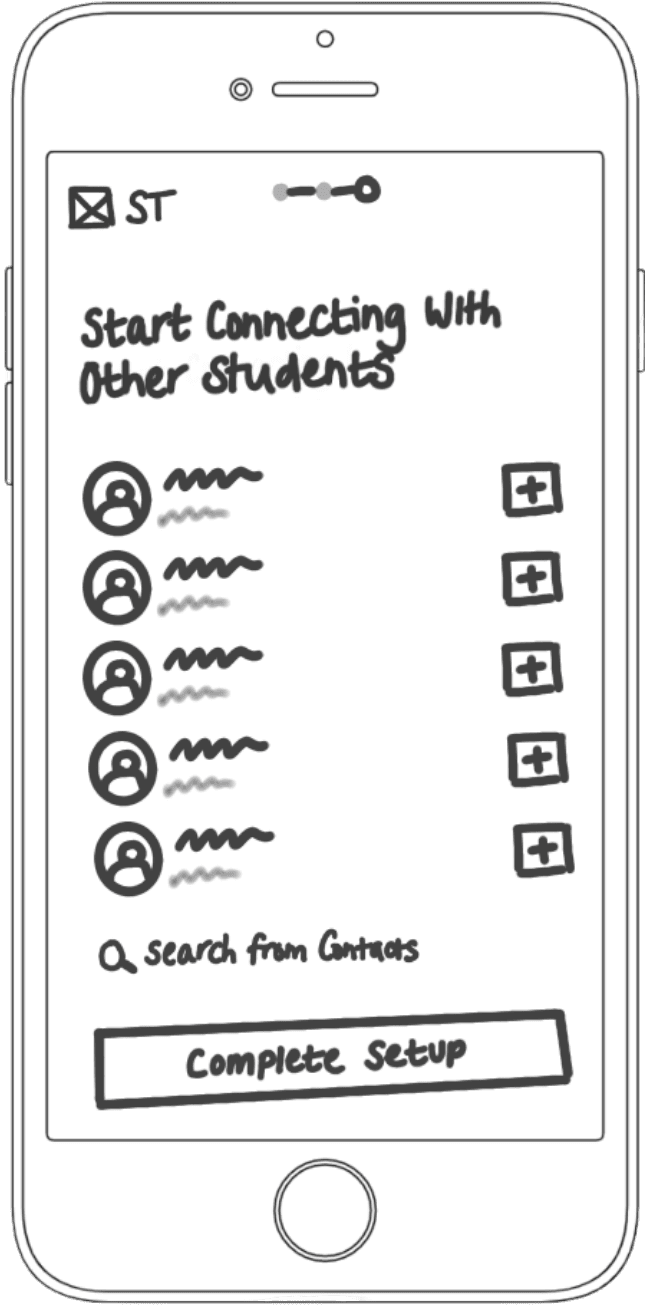
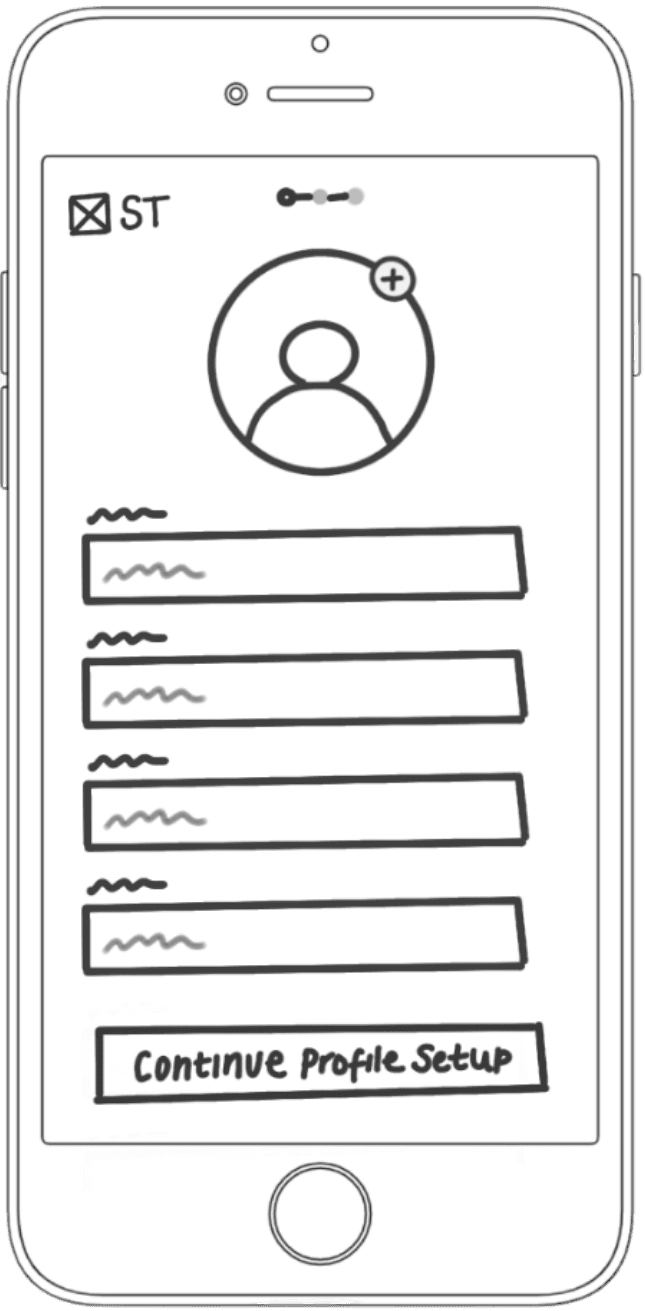
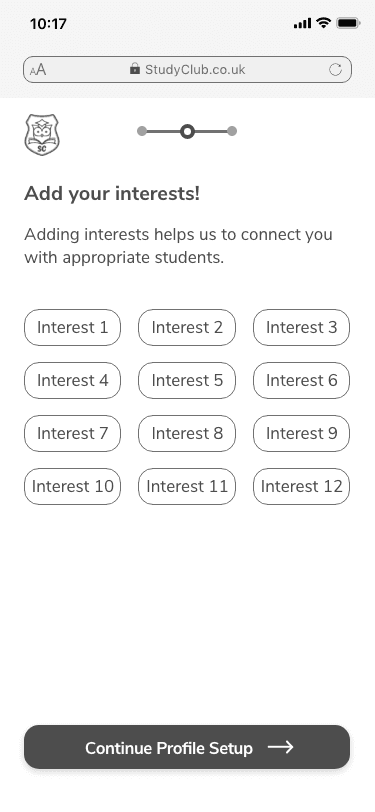
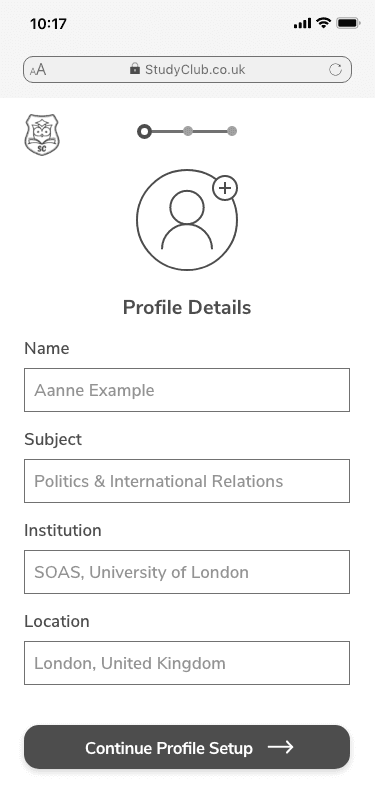
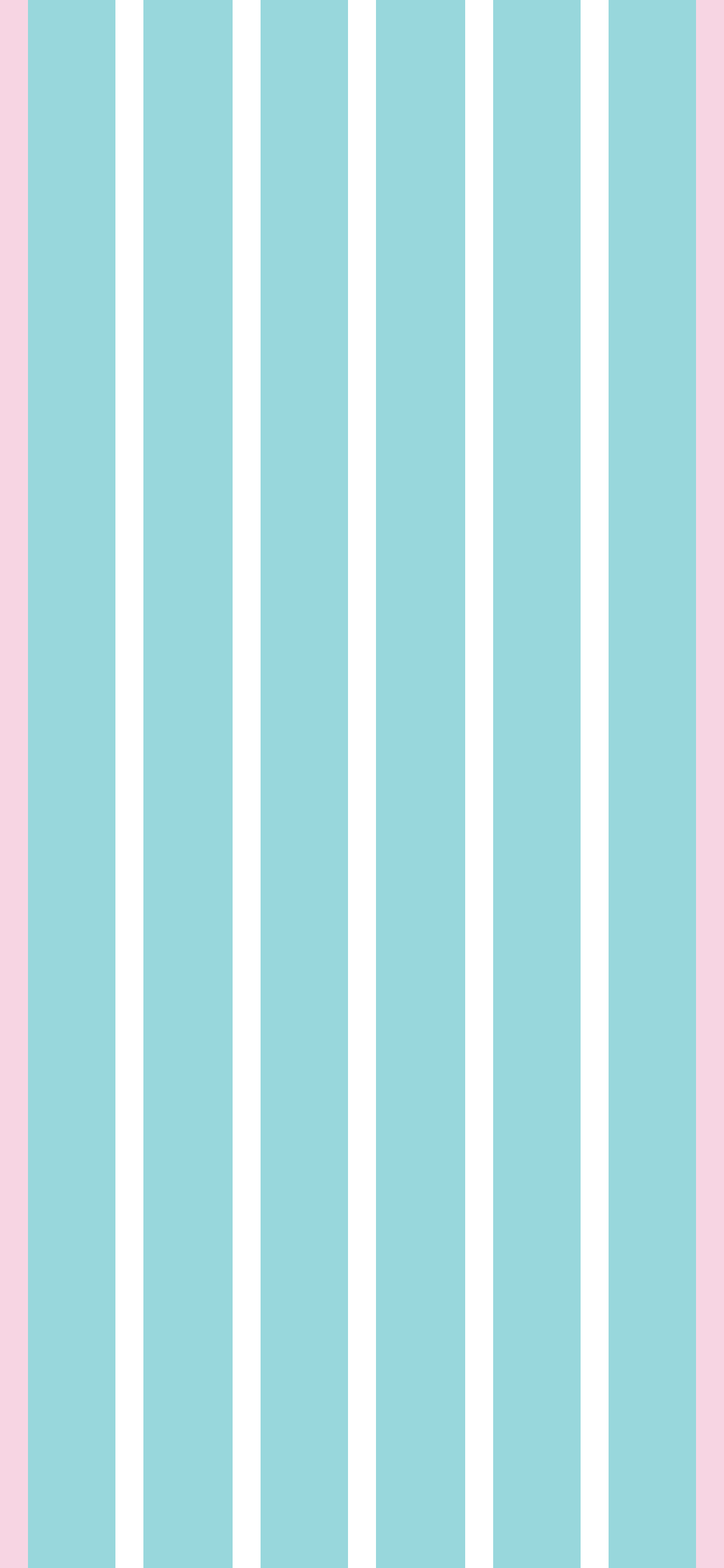
After delving into our user's goals and behaviours, I was able to draw out key features for the site and designed the user flows for each. Initially, I used Procreate on my tablet to sketch out basic designs and work out placement. I then transferred these into a digital format, using Adobe XD. I applied a 12 column responsive grid for these designs and utilised familiar design patterns and visual hierarchy to provide structure.
Setting up a profile
2
Finding a Style
2.1 Mood boards
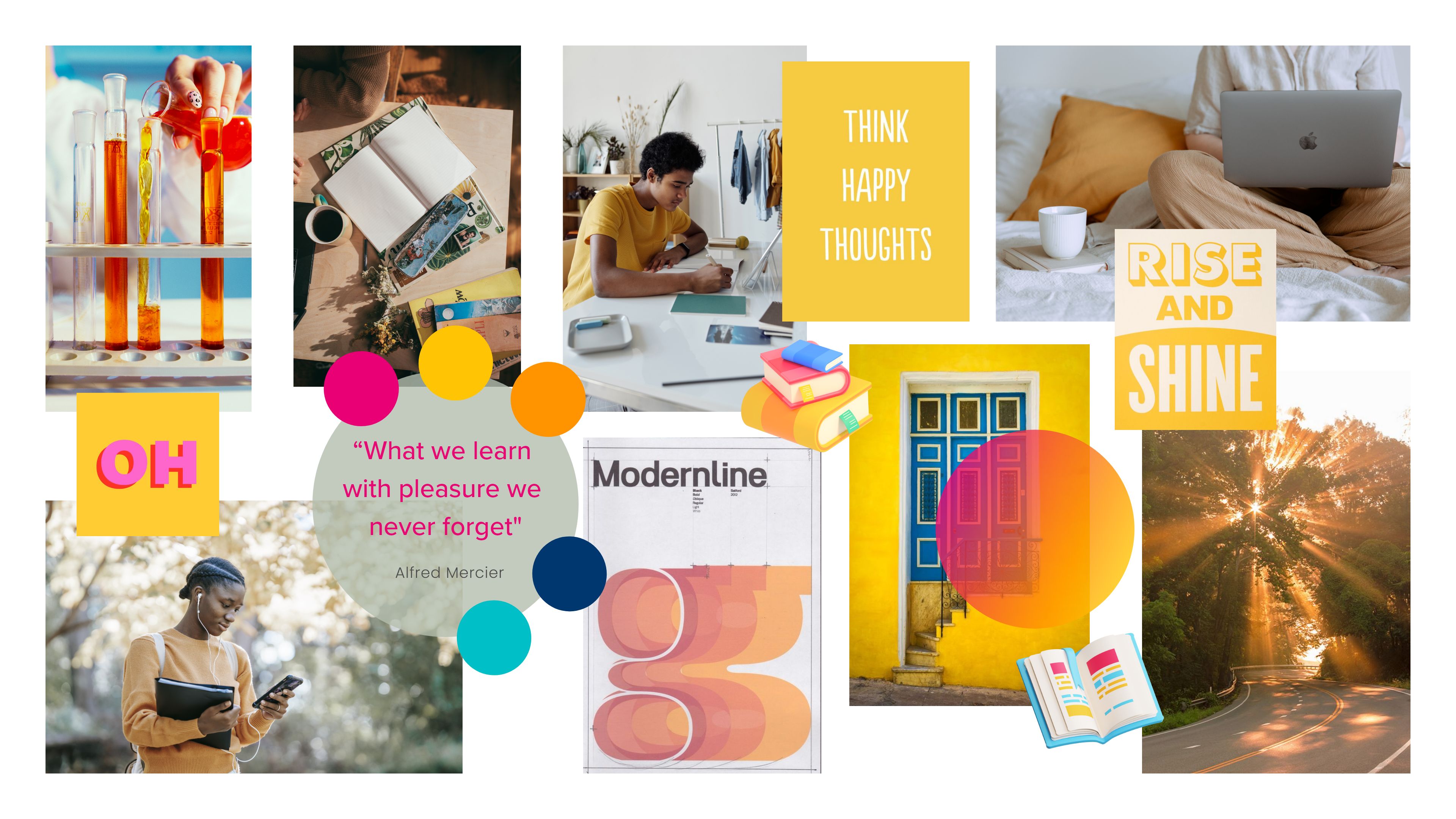
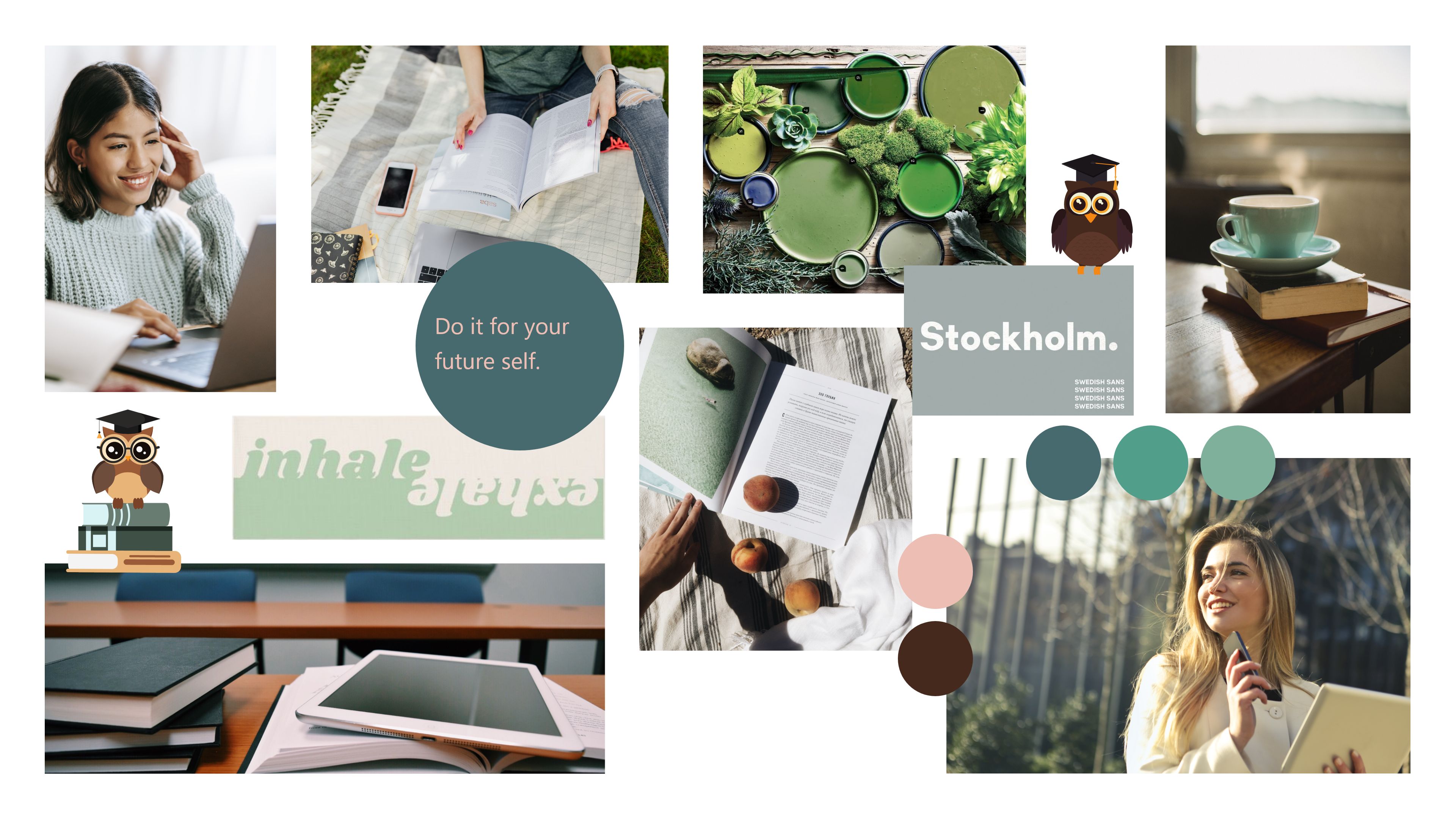
I created both of these mood boards as potential directions for the visual design of the site. The first board focuses more on growth and creating a sense of calmness. The second board, in contrast, is aimed at inspiring creativity and making students feel energised. I decided to use the second board as the direction for the site, as the user stories highlighted the need for students to feel motivated to study and collaborate with each other.
Finding a Style
3
Visual Design Decisions
Visual Design Decisions
3.1 Colour
The original application of colour to the designs are shown below. Feedback highlighted that this application was too distracting, and colour was sometimes being used to 'look nice', as opposed to always serving a purpose for the user.
#e80074
#ffcb00
In the updated designs (pictured below), colour was stripped back completely to only highlight important features and tasks and to ultimately provide structure and guide the user.
#00bfc6
#4D4D4D
#ffffff
#00949A
CTA colour was removed as the background of the main navigation as this was distracting. This also improved the contrast.
Visual Design Decisions
3.2 Typography
Aa
Headings - Fira sans
Fira Sans is modern, clean font that works especially well at medium+ weights. It is also a web font pulled from google, which means the user is not required to have it downloaded to view it.
Aa
Body - Nunito Sans
Nunito Sans is also a clean modern font with good readability. It is also a web font pulled from google, so the font is taken from the online server.
Text weight and opacity were used to further emphasise a visual hierarchy for the user.
Visual Design Decisions
3.3 Gestures
Study Club completely switched up the way I study and the progress was immense!
Lucas Dolan - UK
Met amazing students that have become friends for life! It really has been great :)
Vanessa Toni - Canada
It was so easy to collaborate and get feedback on work! 10/10 would recommend
Lucas Rilano - Brazil
The whiteboard is great and made explaining ideas quickly super simple!
Fatimah Shira - Sweden
What do our Students say?
Drag me!
Check out our testimonials!
Study Club utilises a range of different gestures to guide the user's attention from one piece of information to the nextand provide feedback.
Visual Design Decisions
3.4 Interactions
Interactions have been designed in a way to provide feedback to users. Either by using animations, or by making changes to icons, colour and font.
Password
*
Must be at least 8 characters
Type & interact with me!
Study Buddy
Feedback Exchange
Collaboration
Articles
Books
Friends
Research
Networking
Career Advice
Tap me!
4
Introducing Study Club
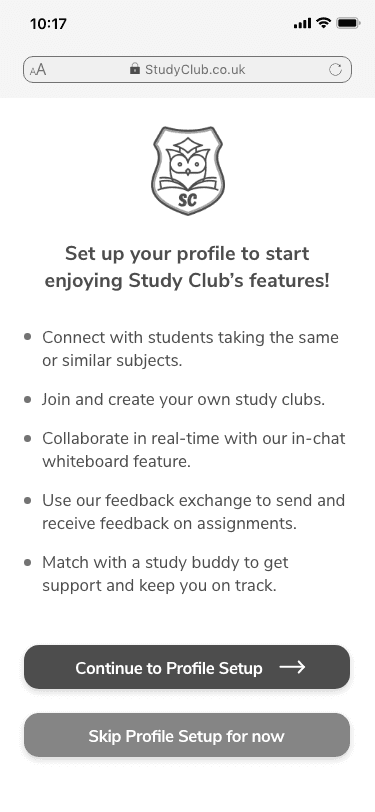
Create a profile to connect with other students taking relevant subjects to you.
4.1 Creating a Profile
Introducing Study Club
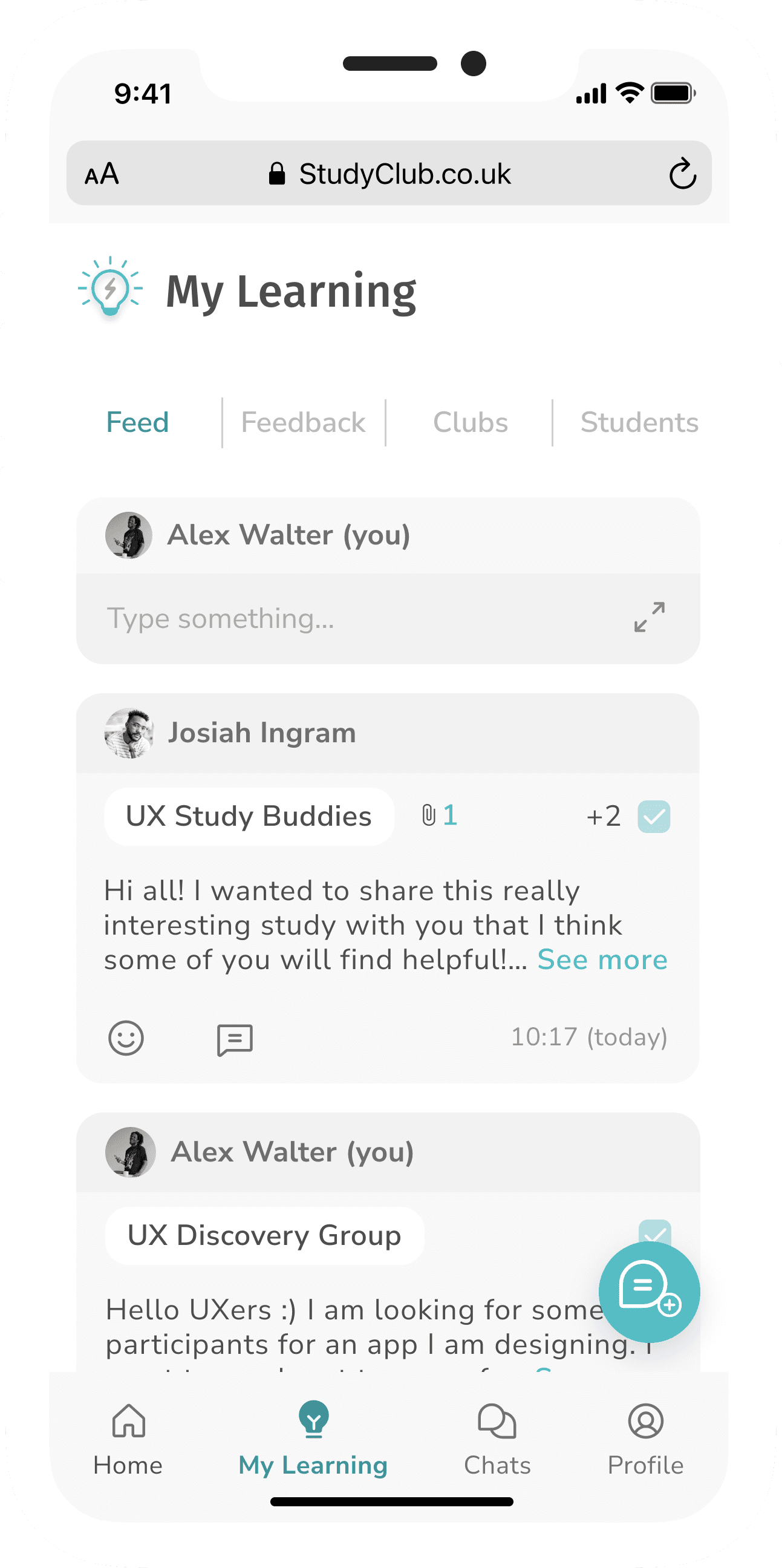
4.2 Adding a Post to Feed
Introducing Study Club
Share articles, videos, images and more to your feed and find posts from other relevant students.
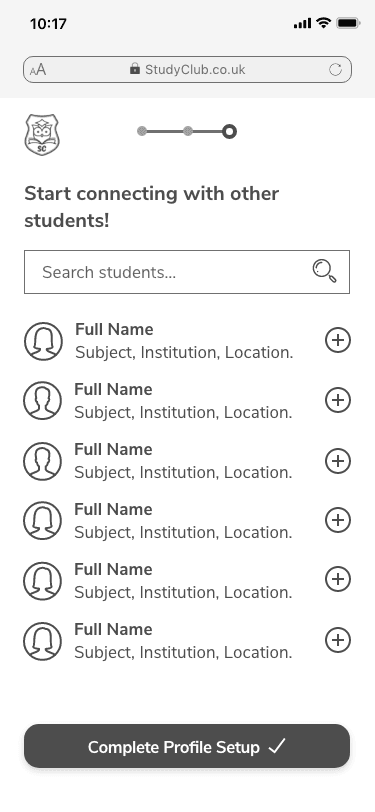
4.3 Adding a Student
Introducing Study Club
Find students studying similar topics and connect with them.
4.4 Joining a Club
Introducing Study Club
Search for relevant clubs to join or create your own for others to join!
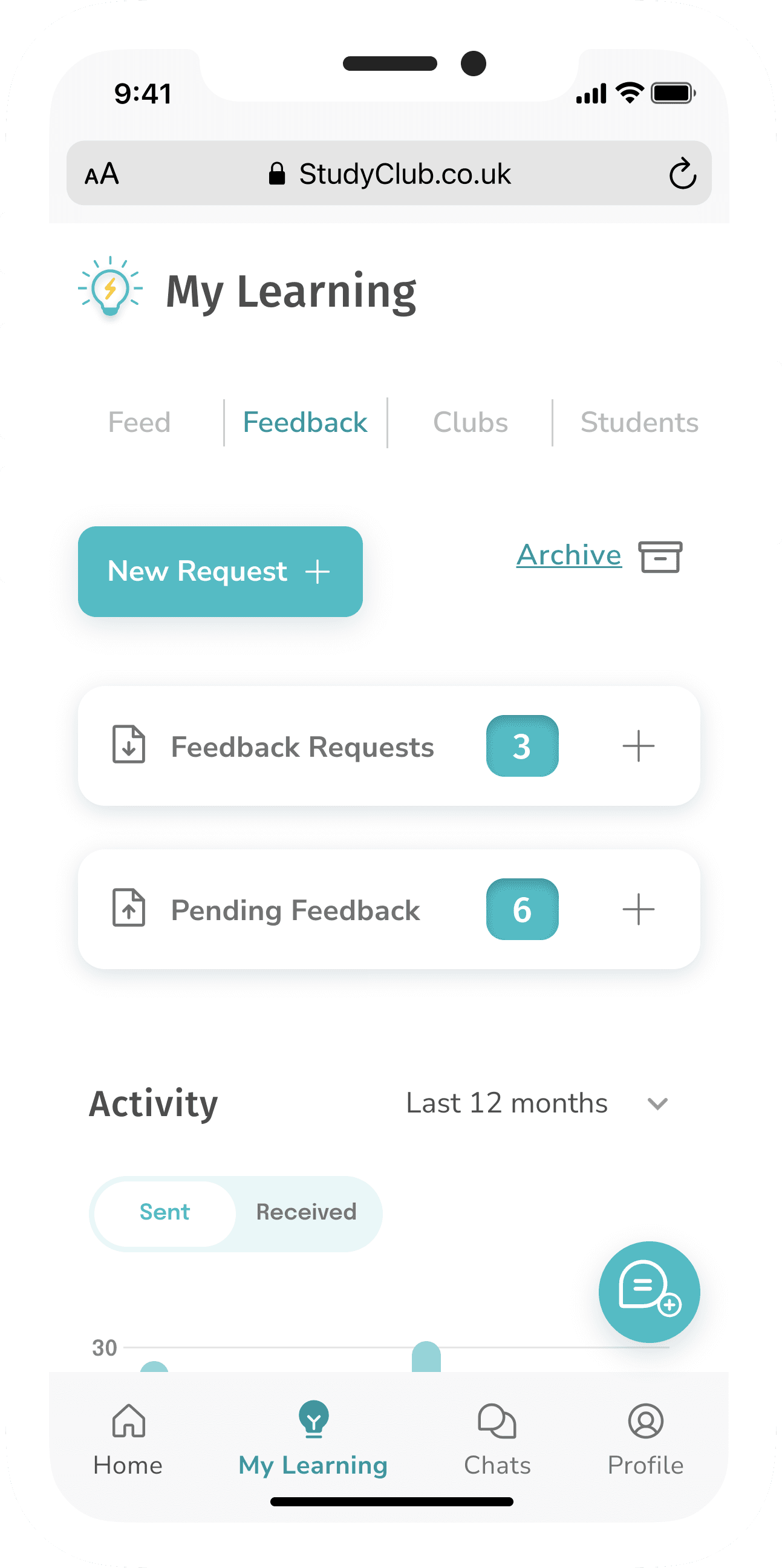
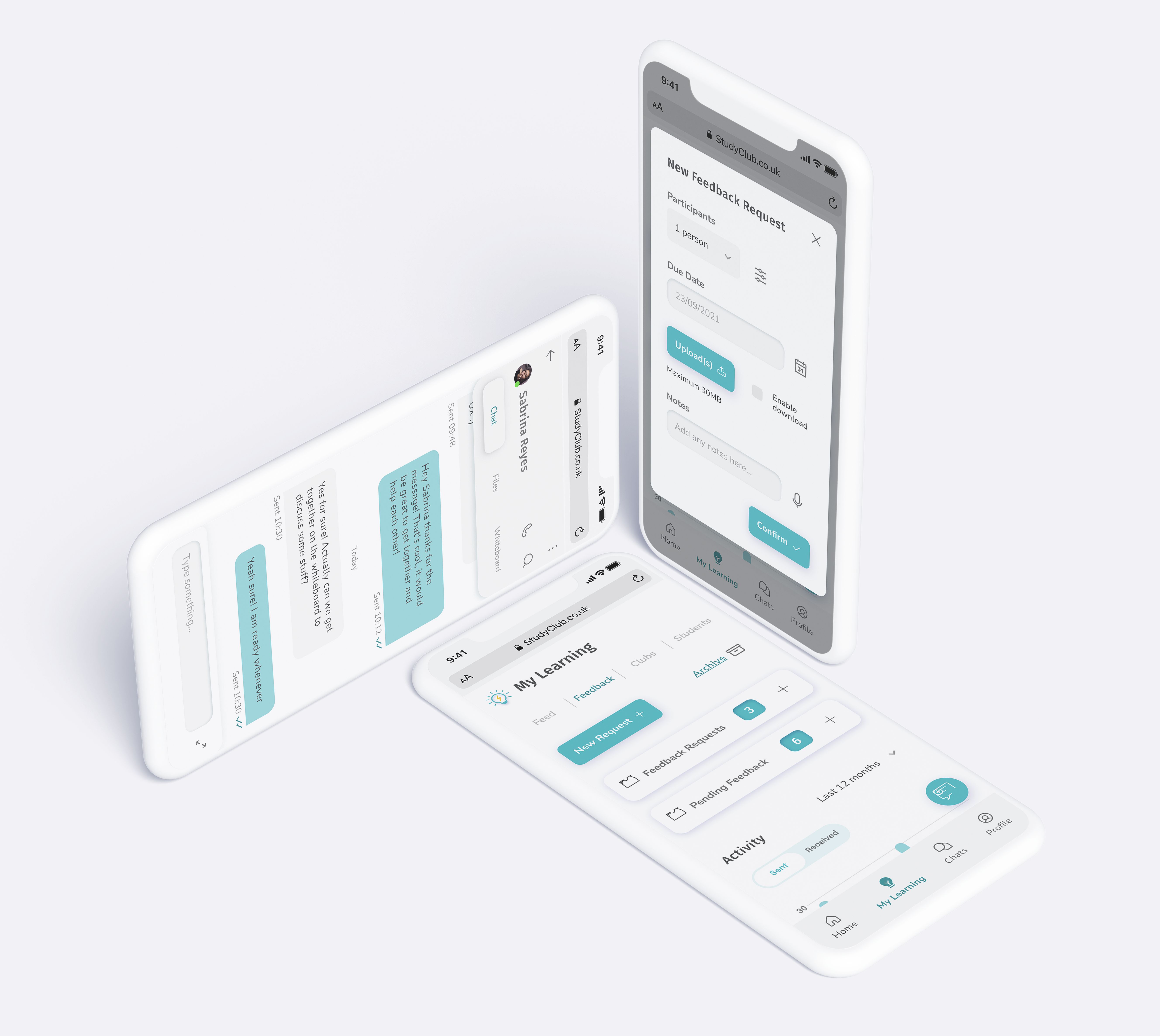
4.5 New Feedback Request
Introducing Study Club
Give and receive feedback on your work from other students in the community.
New Feedback Request
Participants
Upload(s)
Due Date
Confirm
Enable download
Maximum 30MB
Notes
Type & interact with me!
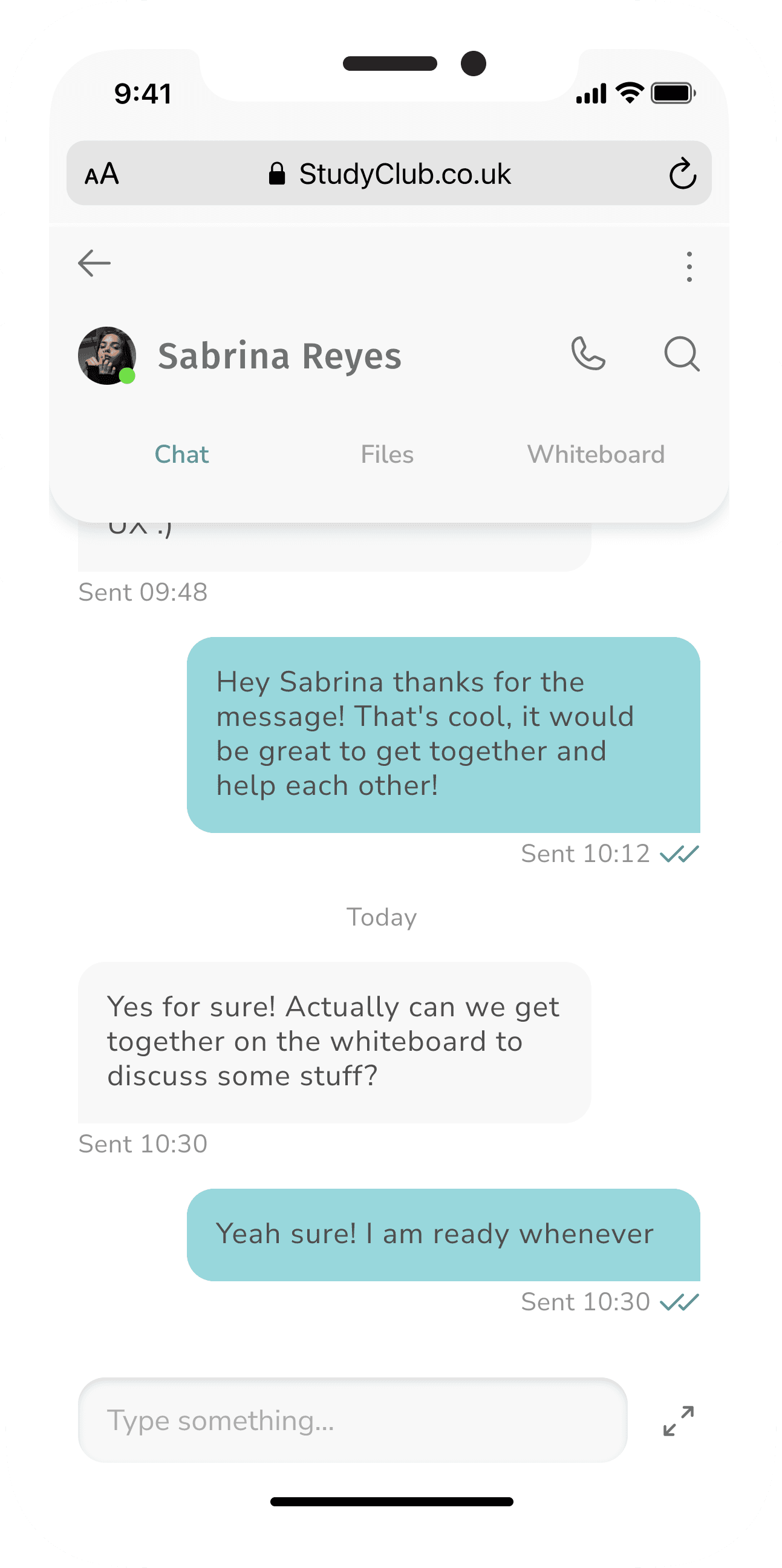
4.6 Sending a Message
Introducing Study Club
Connect with other students through the chat. Take your collaboration to the next level with our whiteboard feature.
5
Style Guide
Medium Logo
For medium space e.g. laptops/desktop.
Full Logo
Small Logo
App Icon
For lots of space available, publications etc.
For limited horizontal space.
Used as the App Icon
Study Club
Connect | Collaborate | Exchange
5.1 Logos
Style Guide (excerpt)
5.2 Colour Palette
Style Guide (excerpt)
#00bfc6
#e80074
#ffcb00
Primary
Secondary
#4D4D4D
#ffffff
Accents
#005457
Shadow
16%
#00949A
Style Guide (excerpt)
5.3 Typography
Aa
Headings - Fira sans
ABCDEFGHIJKLMNOPQRSTUVWXYZ
ABCDEFGHIJKLMNOPQRSTUVWXYZ
0123456789
Aa
Body - Nunito Sans
ABCDEFGHIJKLMNOPQRSTUVWXYZ
ABCDEFGHIJKLMNOPQRSTUVWXYZ
0123456789
5.4 Iconography
Style Guide (excerpt)
Icons are taken from Phosphor
5.5 Imagery
Style Guide (excerpt)
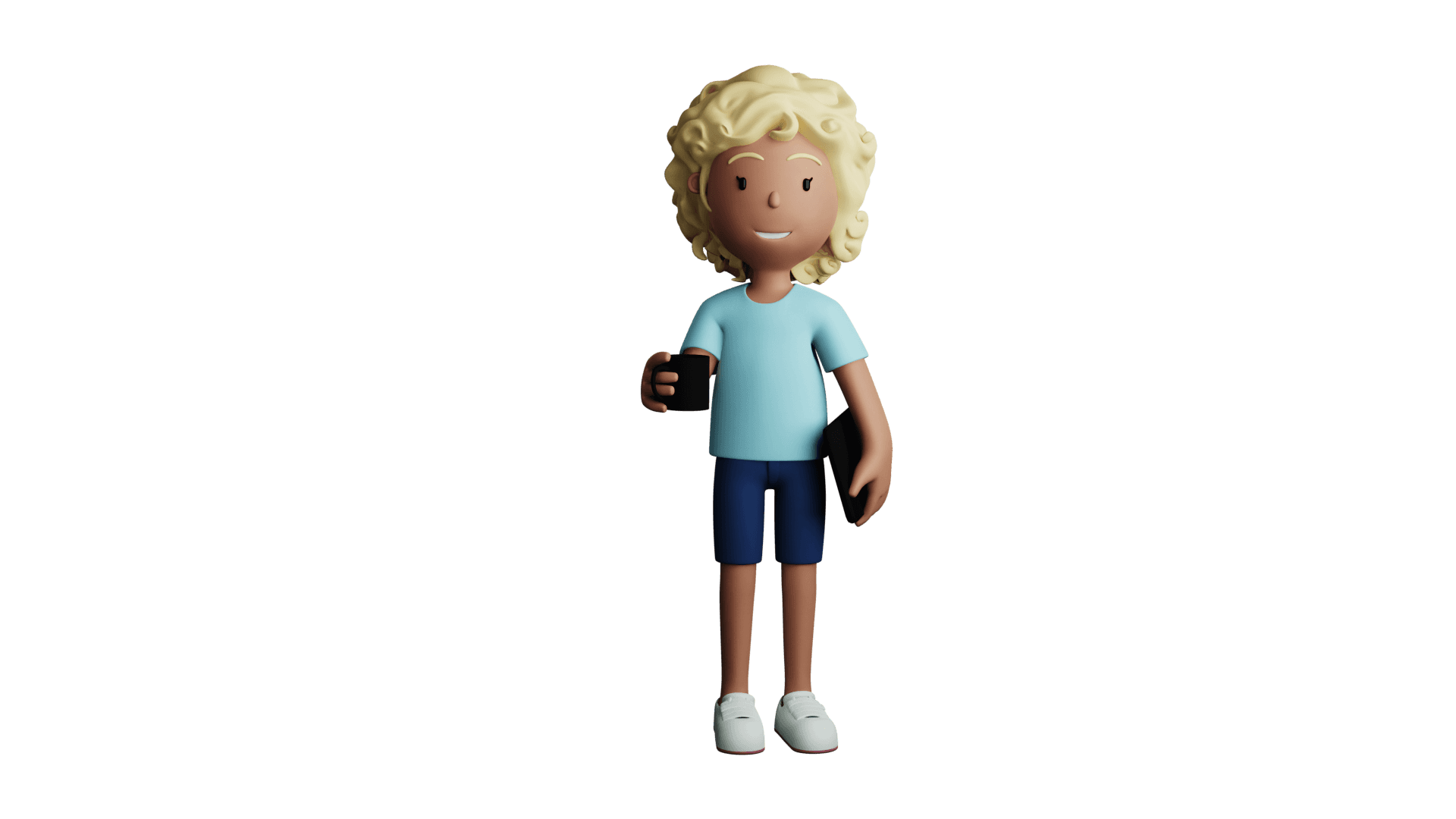
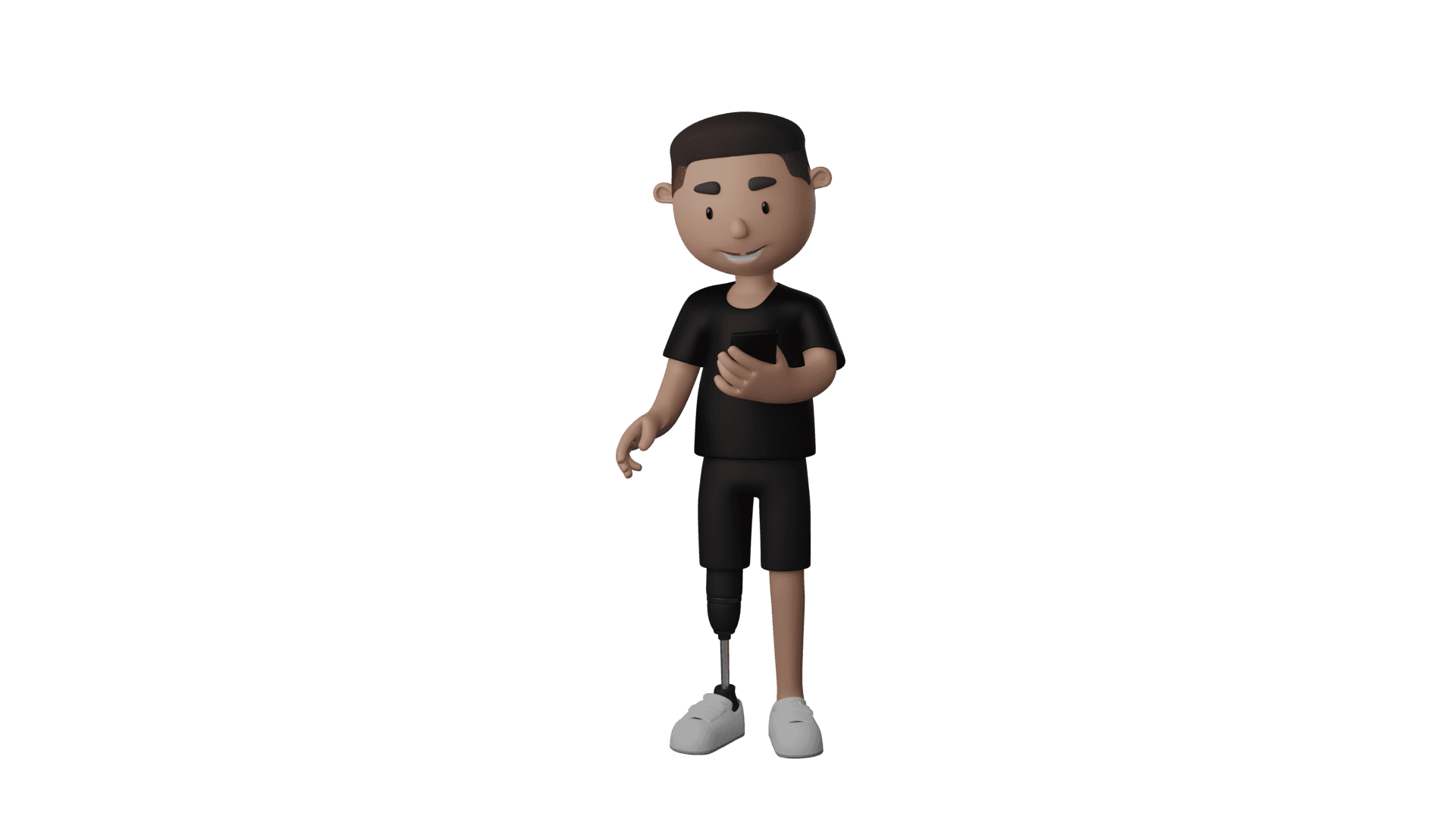
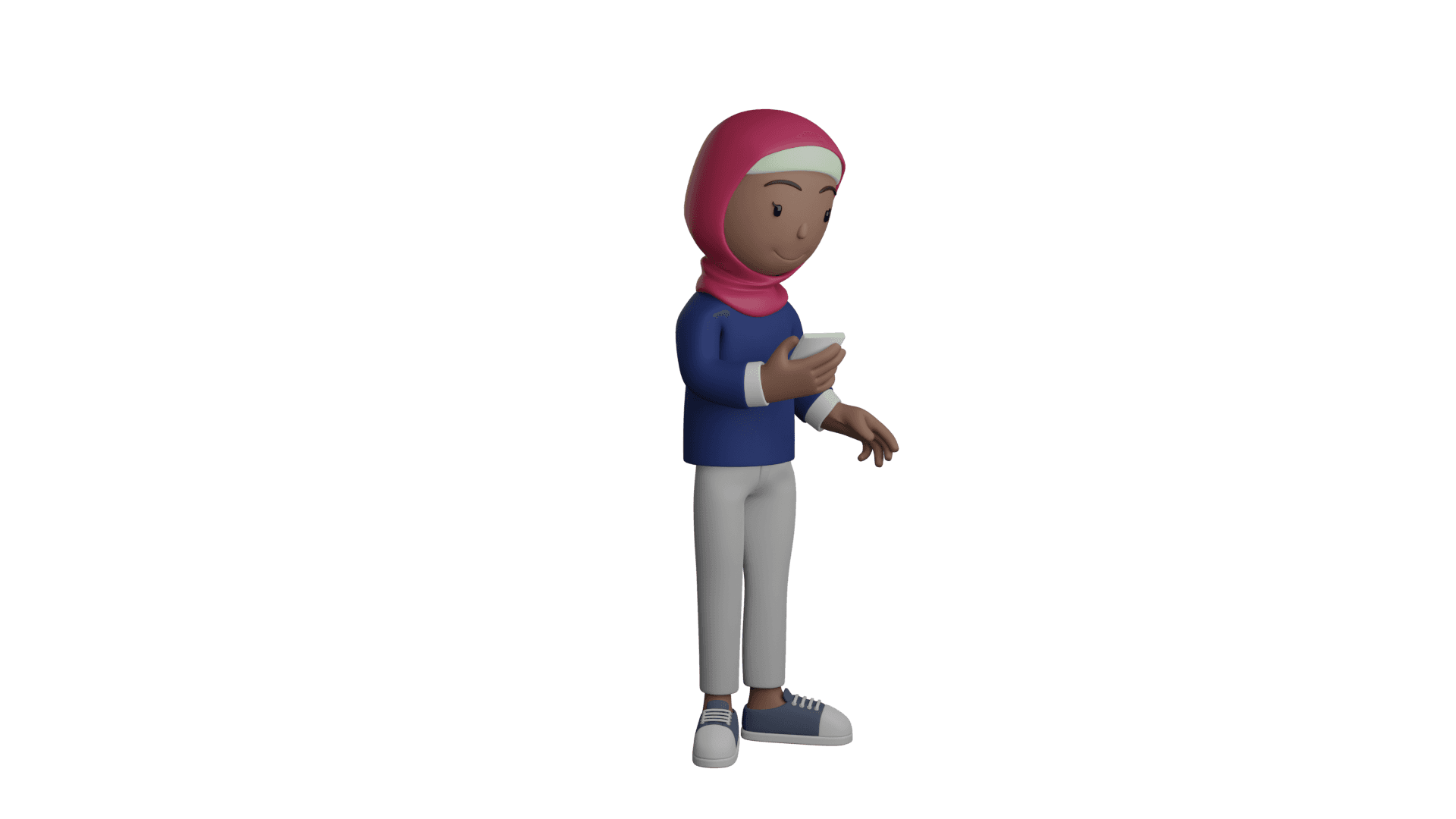
Imagery should mainly utilise the Characterz 3D library and clothing and colours should be customised in-line with the brand. Imagery should be used to help explain.
5.6 UI Elements & Patterns
Style Guide (excerpt)
Button Icon
Button
Button
Button Icon
Join
Add
Primary Button
Secondary Button
Profile Button
Search Button
Join Club
Add Student
10
44px
13
8px
4px
12px
Add Filter
32px
32px
Add Filter Button
Email
Email
Form Field - empty
Completed Form Field - Correct/Error
8px
16px
15
16px
84px (Large space, e.g. Profile)
42px (Medium space, e.g. Search results/Chat list)
28px (Small space e.g. within chat, feed)
Avatar Large
Avatar Medium
Avatar Small
Tag - Add
Fixed Tag (Student & Club Profiles, Feeds etc).
36px
23
10px
Tags
Study Buddy
Study Buddy
Tag - Added
Study Buddy
Email
6
Responsive Design Decisions
X-Small <576px
Margins:
Gutter:
16px
16px
Columns:
6
Medium ≥768px
Margins:
Gutter:
32px
16px
Columns:
8
Large & X-Large ≥992px
Margins:
Gutter:
Left: 152px
16px
Columns:
12
Right: 24px
6.1 Applying the Grid
Responsive Design
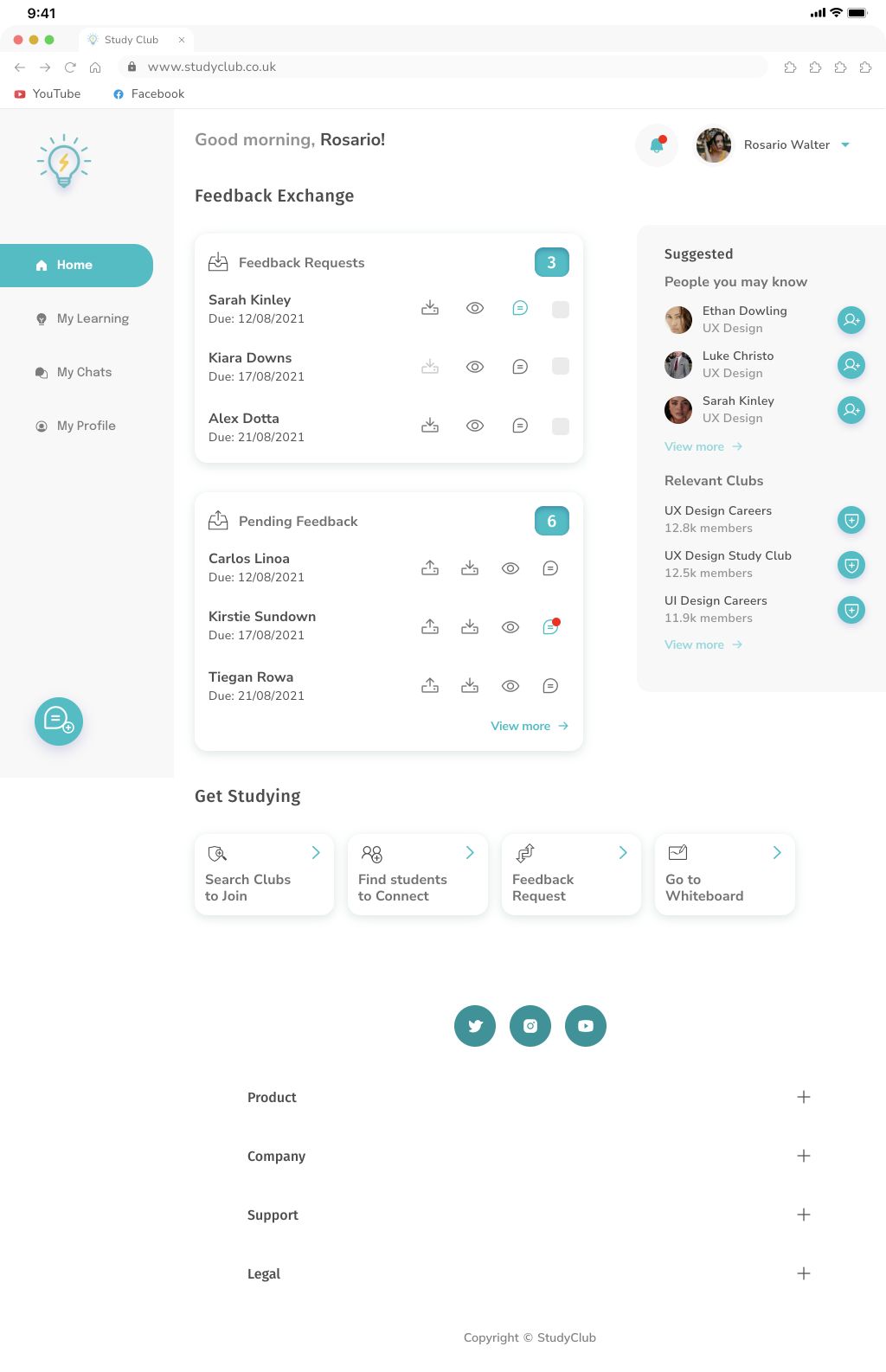
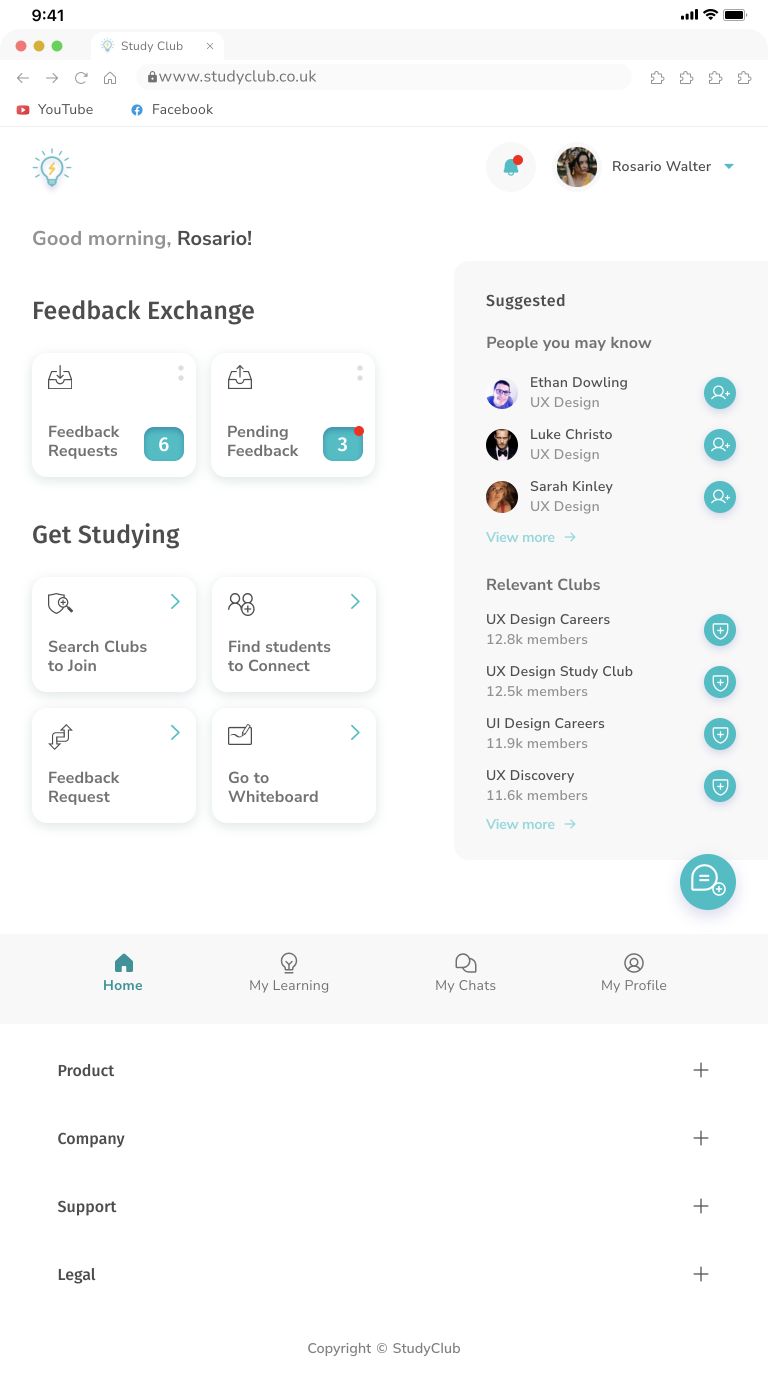
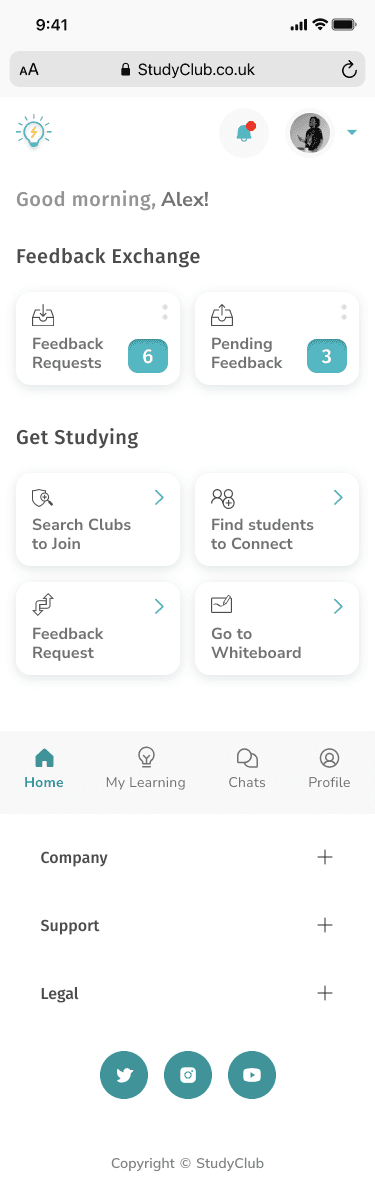
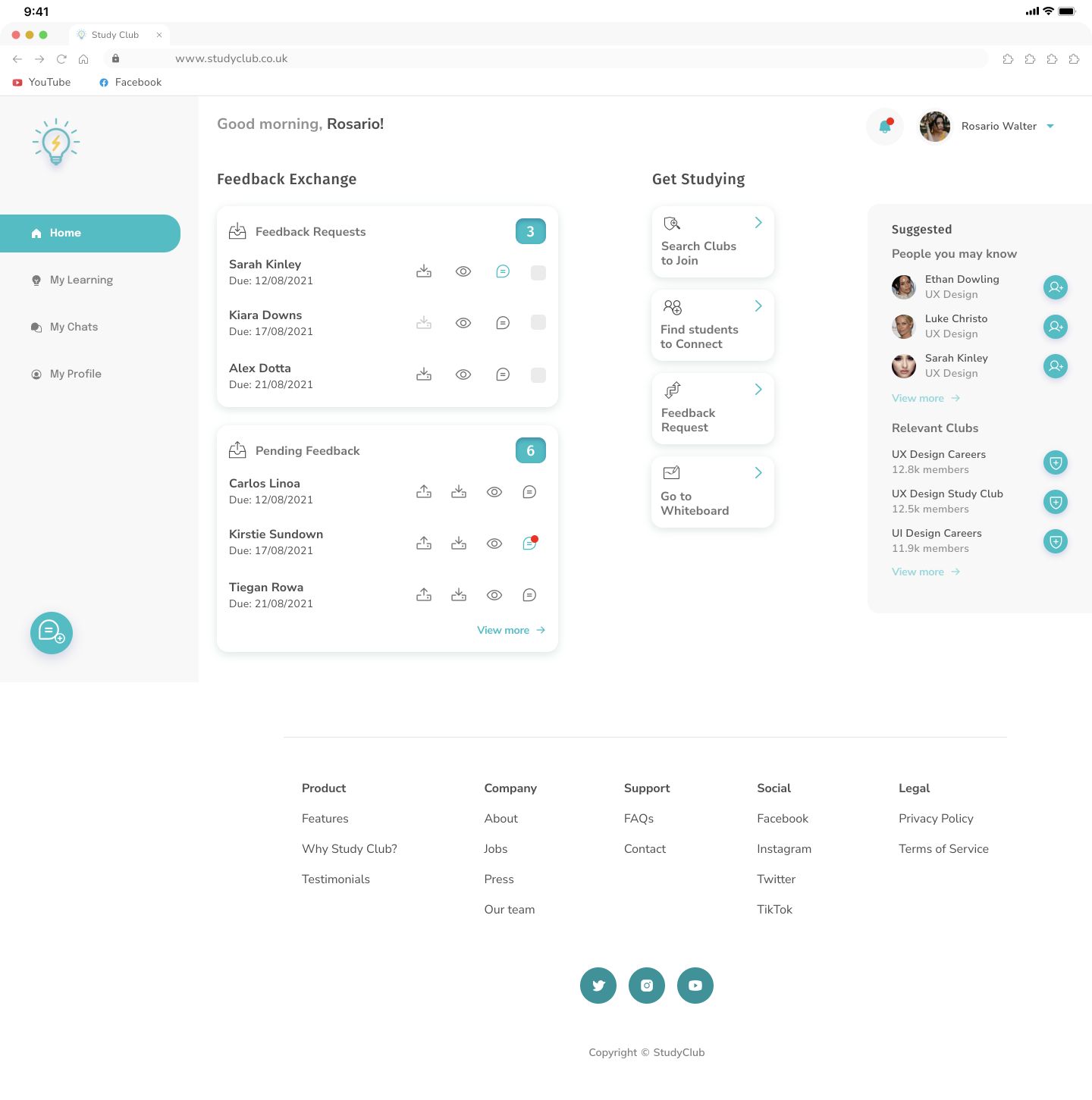
6.2 Making the Designs Responsive
Responsive Design
Home/Dashboard
X-Small
Medium
Large
X-Large
My Learning
X-Small
Medium
Large
X-Large
7
Learnings
7.1 UX should guide every UI decision
Learnings
Design decisions should not be made purely based on aesthetic reasons. Every visual decision should focus on the user and serve a purpose in helping the user to achieve their goal.
7.2 Lots of colour is not always appropriate
Learnings
The use of colour should never be distracting, and should take into account the needs of the user and how and when they will be interacting with your product.
7.3 Mood boards are great for getting you started
Learnings
Mood boards really help to establish a direction for the visual design and it is actually expected that the final product looks somewhat different as we iterate on the designs.
7.4 Designing on an 8pt grid is very useful
Learnings
Consistent and scalable spacing helps to eliminate guesswork and ultimately speeds up the design process. A 4pt grid at times is okay too, especially when space is limited (e.g. on mobile).